跳转到主内容
Procore

工作分解结构:项目管理指南

概况

本指南向具有项目级别管理员工具"管理员"级别权限的用户展示如何利用组织默认 WBS 中定义的可用细分为新的 Procore 项目设置工作分解结构(WBS)

工作流

diagram_admin_project-level_wbs.png

diagram_admin_project-level_wbs_de-de.png

diagram_admin_project-level_wbs_en-au.png

diagram_admin_project-level_wbs_en-ca.png

diagram_admin_project-level_wbs_en-gb.png

diagram_admin_project-level_wbs_es-es.png

diagram_admin_project-level_wbs_es-la.png

diagram_admin_project-level_wbs_fr-ca.png

diagram_admin_project-level_wbs_fr-fr.png

diagram_admin_project-level_wbs_pt-br.png

diagram_admin_project-level_wbs_ja-jp.png

diagram_admin_project-level_wbs_zh-sg.png

diagram_admin_project-level_wbs.png

添加细分项

目标

细分项添加到项目级别工作分解结构 (WBS)中的细分。

背景

细分是组织用来将其工作分解为可管理组件的离散类别。细分项是细分中的许多不同项之一。创建细分后,公司的 Procore 管理员可以在公司级别向其添加无限数量的细分项。但是,是否允许你使用以下步骤在项目级别添加自定义细分项,取决于细分的公司级别设置。

 注意
以下步骤仅在 Procore 管理员在“添加/编辑/删除项目级别细分项”复选框中打对勾时可用。要了解更多信息,请参阅添加自定义细分编辑自定义细分设置

需要考虑的事项

  • Required User Permissions:

    • 'Admin' level permissions on the Project level Admin tool. 
      OR
    • 'Read-Only' or 'Standard' level permissions on the Project level Admin tool with the 'Manage Segment Items' granular permission enabled on your permissions template. 
      Note: Your Procore Administrator must configure additional settings for you to edit or delete a custom segment. To learn more, see the "Notes" in Admin: Manage WBS Codes
  • 其他信息:
      • 要允许项目用户编辑或删除稍后复制到项目的公司级别自定义细分项,完成以下步骤时必须打开添加/编辑/删除项目级别细分项删除继承自公司的细分项设置。
      • 编辑复制到你项目中的公司级别细分项目时,用户将只能更改细分项的“描述”字段。请参阅编辑项目中的细分项
      • 编辑专门在项目上创建的项目级别细分项时,用户将能够更改细分项的“编号”和“描述”。请参阅编辑项目中的细分项
      • Procore 的默认“成本类型”细分只能由 Procore 管理员在公司级别管理员工具中管理。请参阅添加公司成本类型
  • 限制:
    • For customers using the Company level ERP Integrations tool
      The default segments in WBS are compatible with Procore's ERP Integrations tool. However, some integrations do NOT yet support custom segments. To learn more, see Things to Know about your ERP Integration.
    • For customers who have independently developed or purchased a third-party solution to integrate with Procore
      To take advantage of the custom segment capabilities associated with WBS, any existing API integrations that you have independently developed or purchased to interact with Procore must be updated to support Procore's new WBS API.
    • 在扁平细分中,“编号”字段中不允许出现重复条目。
    • 在分层细分中,当细分项是同一父细分的子项时,“代码”字段中不允许出现重复条目。
    • “描述”字段中的条目没有字符限制或其他限制。
    • 可以添加的细分项数量没有限制。

先决条件

步骤

  1. 导航到项目的管理员工具。
  2. 在“公司设置”下,点击工作分解结构链接。
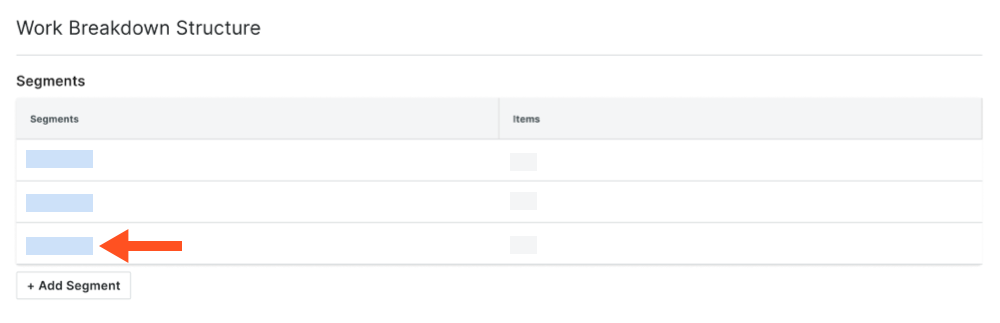
  3. 在"细分"表格中,点击你要使用的细分。

    wbs-segments-add-segment-item.png
     注意
    例如,可以创建名为“阶段”的自定义细分,并添加名为“阶段 I”、“阶段 2”和“阶段 3”的细分项。
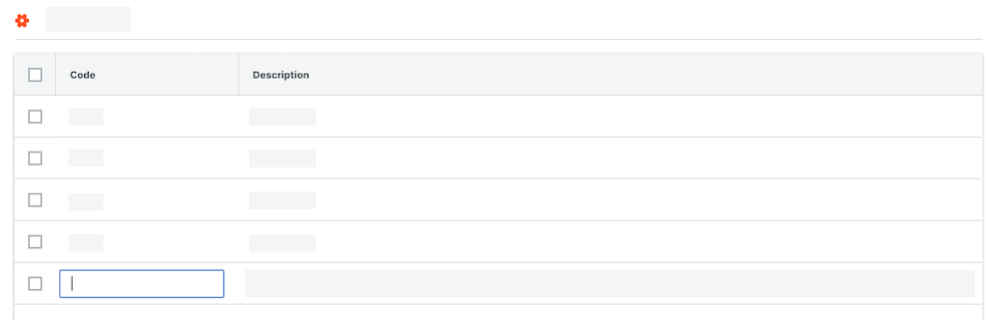
  4. 在"细分"表中,点击添加项按钮。然后执行以下操作:

    wbs-add-segment-line-item.png
    • 编号。为细分项输入唯一字母数字编号。例如,输入:P1、P2 或 P3
       注意
    • 描述。输入细分项的描述。例如,输入:阶段 I、阶段 II 或阶段 III
       重要提示

      要保存新明细项,你必须同时输入“编号”和“描述”。如果在两个字段中都没有输入内容并移动光标的焦点,系统会弹出消息,提醒你所做的任何更改都不会被保存。

      • 要完成对明细项的数据输入,请点击取消
      • 要在不保存明细项的情况下继续,请点击离开
  5. 对要添加的每个细分项重复上述步骤。

编辑细分项

目标

在你的项目级工作分解结构 (WBS) 中编辑细分项

背景

细分是组织用来将其工作分解为可管理组件的离散类别。细分项是细分中的许多不同项之一。创建细分后,公司的Procore 管理员可以在公司级别向其中添加无限数量的细分项。但是,是否允许你使用以下步骤在项目级别编辑细分,取决于细分的公司级别设置。

 注意

要编辑复制到你的项目的公司级别自定义细分项,添加/编辑/删除项目级别细分项设置必须由你公司的 Procore 管理员在添加细分时打开。要了解更多信息,请参阅添加自定义细分

需要考虑的事项

  • Required User Permissions:

    • 'Admin' level permissions on the Project level Admin tool. 
      OR
    • 'Read-Only' or 'Standard' level permissions on the Project level Admin tool with the 'Manage Segment Items' granular permission enabled on your permissions template. 
      Note: Your Procore Administrator must configure additional settings for you to edit or delete a custom segment. To learn more, see the "Notes" in Admin: Manage WBS Codes
  • 其他信息:
    • 要编辑或删除复制到你的项目的公司级别自定义细分项,添加/编辑/删除项目级别细分项删除从公司继承的细分项设置必须由公司的 Procore 管理员在添加细分时打开。要了解更多信息,请参阅添加自定义细分、以下步骤从项目中删除未使用的细分项
    • 编辑复制到项目的公司级别细分项时,你只能更改细分项的“描述”字段。
    • 编辑在项目上专门创建的项目级别细分项时,你可以更改细分项的“代码”和“描述”。
    • Procore 的默认“成本类型”细分只能由 Procore 管理员在公司级别管理员工具中管理。请参阅添加公司成本类型
  • 限制:
    • For customers using the Company level ERP Integrations tool
      The default segments in WBS are compatible with Procore's ERP Integrations tool. However, some integrations do NOT yet support custom segments. To learn more, see Things to Know about your ERP Integration.
    • For customers who have independently developed or purchased a third-party solution to integrate with Procore
      To take advantage of the custom segment capabilities associated with WBS, any existing API integrations that you have independently developed or purchased to interact with Procore must be updated to support Procore's new WBS API.
    • 在扁平细分中,“编号”字段中不允许出现重复条目。
    • 在分层细分中,当细分项是同一父细分的子项时,“代码”字段中不允许出现重复条目。
    • “描述”字段中的条目没有字符限制或其他限制。
    • 可以添加的细分项数量没有限制。
      • ERP 集成工具不支持自定义细分。

先决条件

步骤

  1. 导航到项目的管理员工具。
  2. 在“项目设置”下,点击工作分解结构链接。
  3. 在"细分"表格中,点击你要使用的细分。

    wbs-segments-add-segment-item.png
  4. 在“细分”表中,找到要编辑的细分。
  5. 点击描述字段并用新值覆盖现有值。
    示例

    在此示例中,我们在名为“阶段”的自定义细分中将“描述”字段从“阶段 1”更改为“阶段 I”。

    wbs-typeover-description.png

另请参阅

删除未使用的细分项

目标

从 Procore 项目中删除未使用的细分项。

背景

在项目级别,可以根据你公司的 Procore 管理员在创建细分时设置的策略来删除细分和细分项(请参阅添加自定义段)。与公司级别 WBS 中的细分项非常相似,项目级别细分项只有在未用于在项目上创建预算编号时才能删除。

 注意
The steps below are only available when your Procore Administrator places a checkmark in the 'Add/Edit/Delete Project Level Segment Items' box. To learn more, see Add Custom Segments and Edit Custom Segment Settings

需要考虑的事项

  • Required User Permissions:

    • 'Admin' level permissions on the Project level Admin tool. 
      OR
    • 'Read-Only' or 'Standard' level permissions on the Project level Admin tool with the 'Manage Segment Items' granular permission enabled on your permissions template. 
      Note: Your Procore Administrator must configure additional settings for you to edit or delete a custom segment. To learn more, see the "Notes" in Admin: Manage WBS Codes
  • 其他信息
    • 细分项用于在项目上创建预算编号后,不能将其删除。但是,可以将其停用以防止将来使用。请参阅停用细分项
  • 限制:
    • For customers using the Company level ERP Integrations tool
      The default segments in WBS are compatible with Procore's ERP Integrations tool. However, some integrations do NOT yet support custom segments. To learn more, see Things to Know about your ERP Integration.
    • For customers who have independently developed or purchased a third-party solution to integrate with Procore
      To take advantage of the custom segment capabilities associated with WBS, any existing API integrations that you have independently developed or purchased to interact with Procore must be updated to support Procore's new WBS API.

先决条件

步骤

  1. 导航至项目级管理工具。
  2. 在“项目设置”下,点击工作分解结构链接。
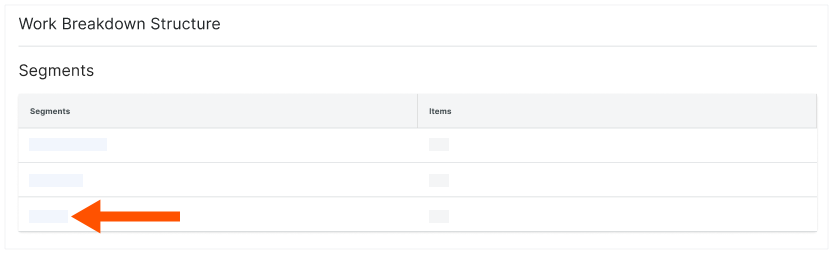
  3. 在"细分"表中,点击包含要删除的项的细分。
    wbs-project-segments-edit.png
     
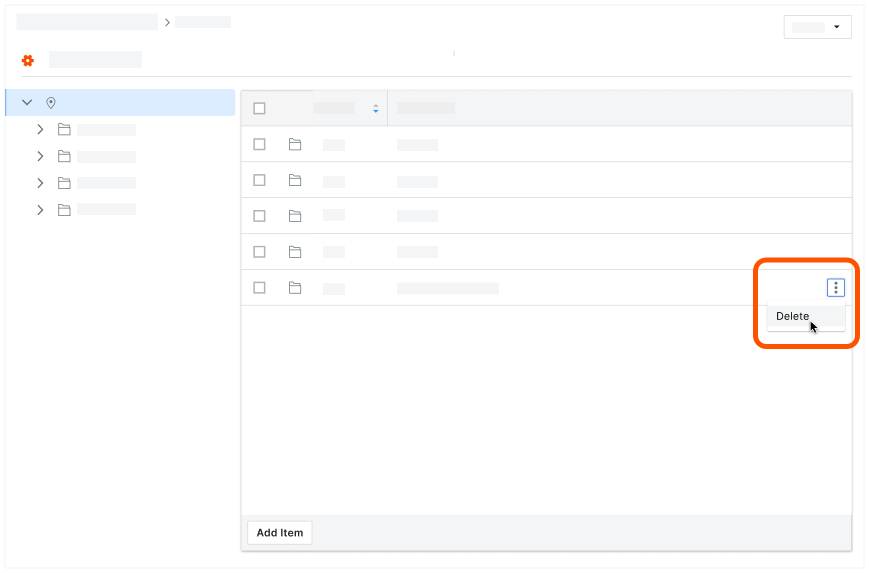
  4. 找到要删除的细分项。如果要删除分层细分,则需要导航到该细分项并在左窗格中突出显示它。
  5. 点击细分项明细项上的垂直省略号,然后从溢出菜单中选择删除

    wbs-delete-segment-item.png

另请参阅

将成本编号分配给子作业

目标

将成本编号分配给项目工作分解结构 (WBS) 的子作业。

背景

将成本编号分配给子作业是实现财务控制、项目效率、明智决策和更高盈利能力的关键实践,可在整个组织范围内提供至关重要的细分财务可见性。将公司成本编号添加到 Procore 项目后,用户可以将这些编号添加到项目的子作业中,以便团队更好地跟踪财务信息。在项目级别管理员中,用户也可以使用搜索功能快速找到成本编号,并将其分配给批量的子作业,或手动为每个子作业添加编号。

需要考虑的事项

  • 所需用户权限:
    • 项目级别管理员工具的“管理员”级别权限。
  • 限制:
    • For customers using the Company level ERP Integrations tool
      The default segments in WBS are compatible with Procore's ERP Integrations tool. However, some integrations do NOT yet support custom segments. To learn more, see Things to Know about your ERP Integration.
    • For customers who have independently developed or purchased a third-party solution to integrate with Procore
      To take advantage of the custom segment capabilities associated with WBS, any existing API integrations that you have independently developed or purchased to interact with Procore must be updated to support Procore's new WBS API.
    • ERP 集成工具不支持自定义细分。

步骤

将成本编号批量添加到子作业

  1. 导航到项目的管理员工具。
  2. 在"项目设置"下,点击工作分解结构
  3. 在"细分"表中,点击子作业
     注意
  4. 点击 批量添加公司成本编号

    bulk-add-company-cost-codes.png
     
  5. 搜索框中,键入以搜索编号。
    系统会列出与你的条目匹配的所有编号。
  6. 从以下选项中选择:
    • 要选择所有匹配的编号,请点击全选
    • 要选择特定编号,请在列表中突出显示它们。
  7. 点击下一步
  8. 在"选择子作业"窗口中,选中所需的子作业复选框以添加选定的编号。
  9. 点击添加

将单个成本编号添加到子作业

  1. 导航到项目的管理员工具。
  2. 在“项目设置”下,点击工作分解结构链接。
  3. 在“细分”表中,点击子作业链接。
     注意
    • 如果“细分”表中未显示“子作业”链接,请参阅为 WBS 启用子作业
    • 在能够将子作业添加到项目之前,你公司的 Procore 管理员必须先添加你公司的成本编号。请参阅添加公司成本编号
    • 对于子作业,成本编号是从公司级别的标准成本编号列表中复制的,而不是从项目级别的成本编号列表中复制的。
  4. 在"子作业"列表中,找到要分配成本编号的子作业。
  5. 点击的图标编辑-android.svg子作业上的图标。
  6. 从以下选项中选择:
    • 要将公司的所有成本编号分配给选定的子作业,请点击来自公司的成本编号按钮。
    • 要为所选子作业创建成本编号,请点击列表底部的添加成本编号
  7. 输入编号描述
  8. 设置成本编号的状态
     
     注意
    • 如果任何选定的成本编号已被现有项目 成本 编号使用,Procore 不会将这些成本编号分配给子作业。 相反,系统会显示一个黄色横幅,通知你受影响的成本编号已在使用中。 要查看受影响成本编号的列表,请点击 显示详细信息 按钮。

将公司成本编号复制到项目

目标

使用项目管理员工具的工作分解结构 (WBS) 页面将公司成本编号复制到 Procore 项目。

背景

Cost Code is a code that defines the specific type of work being completed on a construction project.

需要考虑的事项

  • 所需用户权限:
    • 项目级别管理工具的“管理员”级别权限。
      或者
    • 项目级别管理工具上的"只读"或"标准"级别权限,并已在你的权限模板上启用"管理 WBS 代码"细分权限
  • 限制:
    • For customers using the Company level ERP Integrations tool
      The default segments in WBS are compatible with Procore's ERP Integrations tool. However, some integrations do NOT yet support custom segments. To learn more, see Things to Know about your ERP Integration.
    • For customers who have independently developed or purchased a third-party solution to integrate with Procore
      To take advantage of the custom segment capabilities associated with WBS, any existing API integrations that you have independently developed or purchased to interact with Procore must be updated to support Procore's new WBS API.

步骤

  1. 导航到项目级别的管理员工具。
  2. 在“项目设置”下,点击工作分解结构链接。
  3. 在“细分”列表中,点击成本代码链接。
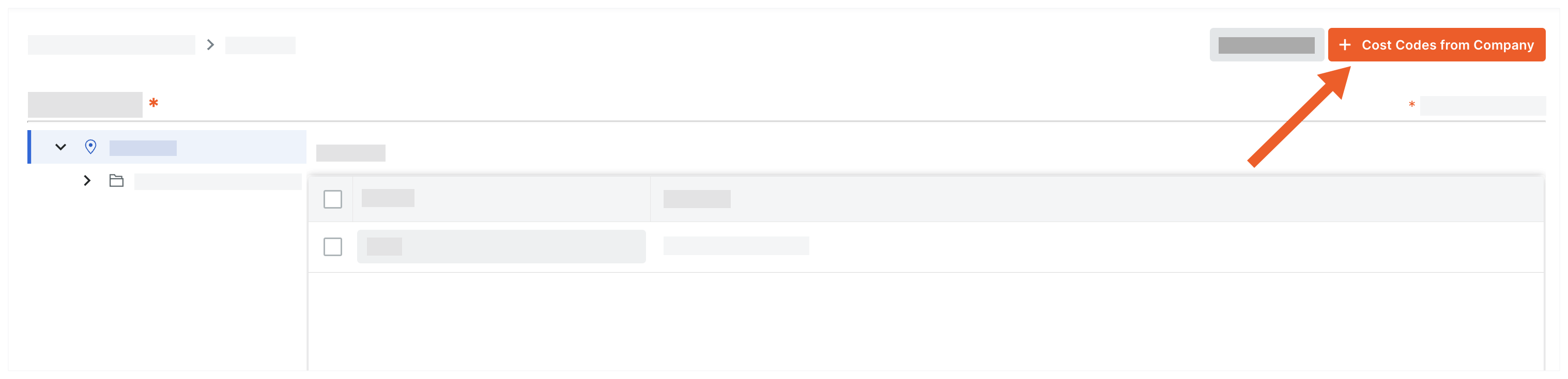
  4. 点击来自公司的成本编号
    btn-cost-codes-from-company.png
  5. 在"将成本编号添加到此项目"窗口中,从以下选项中选择:

    add-cost-codes-to-this-project.png
    • 要将所有公司成本编号复制到项目中,请点击全选
    • 要选择特定成本编号,请在搜索成本编号框中输入编号并突出显示要添加的编号。
    • 要选择成本编号,请展开所需的细分项并突出显示要复制的细分项。
  6. 点击添加

将子作业添加到项目

目标

在项目管理员工具的工作分解结构 (WBS)页面中向 Procore 项目添加子作业。

背景

In Procore, a sub job allows you to compartmentalize job costs within a project. Once they are added to Procore (or imported via an integrated ERP system) you can monitor your project budgets and costs against them to help you better determine if you are making money on your project. For example, if your project is a multi-story commercial building, you might create a separate sub job for the build of each floor. Or, if your project is a multi-unit development, you might create a separate sub job for each individual structure.

创建子作业后,你可以在分项价格表 (SOV) 中为子作业的变更通知单发布特定明细项。

需要考虑的事项

  • Required User Permissions:

    • 'Admin' level permissions on the Project level Admin tool. 
      OR
    • 'Read-Only' or 'Standard' level permissions on the Project level Admin tool with the 'Manage Segment Items' granular permission enabled on your permissions template. 
      Note: Your Procore Administrator must configure additional settings for you to edit or delete a custom segment. To learn more, see the "Notes" in Admin: Manage WBS Codes
  • 其他信息: 
    • 将“子工作”添加到项目也会将其添加到公司级别的“细分”列表中。“子作业”细分计为十三 (13) 个可用细分中的一 (1) 个。
  • 限制:
    • For customers using the Company level ERP Integrations tool
      The default segments in WBS are compatible with Procore's ERP Integrations tool. However, some integrations do NOT yet support custom segments. To learn more, see Things to Know about your ERP Integration.
    • For customers who have independently developed or purchased a third-party solution to integrate with Procore
      To take advantage of the custom segment capabilities associated with WBS, any existing API integrations that you have independently developed or purchased to interact with Procore must be updated to support Procore's new WBS API.

步骤

  1. 导航到项目的管理员工具。
  2. 在“项目设置”下,点击工作分解结构链接。
  3. 在“细分”表中,点击子作业链接。
     注意
    • 如果“细分”表中未显示“子作业”链接,请参阅为 WBS 启用项目上的子作业
    • 在能够将子作业添加到项目之前,你公司的 Procore 管理员必须先添加你公司的成本编号。请参阅添加公司成本编号
    • 对于子作业,成本编号是从公司级别的标准成本编号列表中复制的,而不是从项目级别的成本编号列表中复制的。
  4. 从以下选项中选择:
    • 如果你是第一次创建子作业,请点击添加细分项目按钮。
      或者
    • 如果要将子作业添加到现有列表,请点击添加项按钮。
  5. 输入以下信息:
    • 编号。输入子作业的字母数字编号。
    • 描述。输入新子作业的描述。
  6. 点击明细行以外的任意位置以保存。
    Procore 以绿色文本显示工作“已保存”。
     重要提示

    如下图所示,将“子作业”段添加到项目后,它会自动添加到公司级管理工具中的“细分”表中,旁边显示一个工具提示。将“子作业”添加到项目视为使用公司十三 (13) 个可用细分中的一 (1) 个。
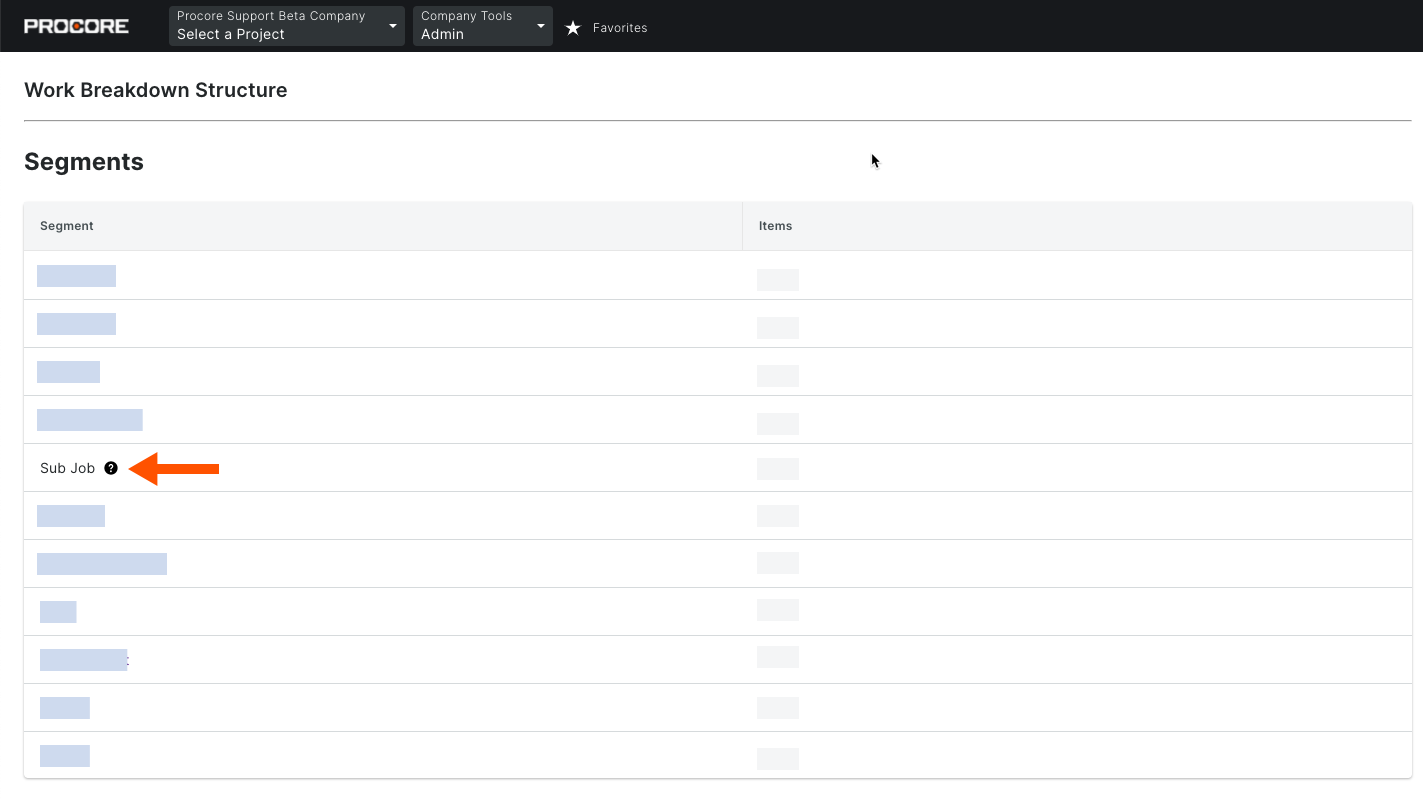
    wbs-sub-jobs-in-segment-table.png

将项目成本编号分配给子作业

目标

将成本编号分配给项目工作分解结构 (WBS) 的子作业。

背景

将成本编号分配给子作业是实现财务控制、项目效率、明智决策和更高盈利能力的关键实践,可在整个组织范围内提供至关重要的细分财务可见性。将公司成本编号添加到 Procore 项目后,用户可以将这些编号添加到项目的子作业中,以便团队更好地跟踪财务信息。在项目级别管理员中,用户也可以使用搜索功能快速找到成本编号,并将其分配给批量的子作业,或手动为每个子作业添加编号。

需要考虑的事项

  • 所需用户权限:
    • 项目级别管理员工具的“管理员”级别权限。
  • 限制:
    • For customers using the Company level ERP Integrations tool
      The default segments in WBS are compatible with Procore's ERP Integrations tool. However, some integrations do NOT yet support custom segments. To learn more, see Things to Know about your ERP Integration.
    • For customers who have independently developed or purchased a third-party solution to integrate with Procore
      To take advantage of the custom segment capabilities associated with WBS, any existing API integrations that you have independently developed or purchased to interact with Procore must be updated to support Procore's new WBS API.
    • ERP 集成工具不支持自定义细分。

步骤

将成本编号批量添加到子作业

  1. 导航到项目的管理员工具。
  2. 在"项目设置"下,点击工作分解结构
  3. 在"细分"表中,点击子作业
     注意
  4. 点击 批量添加公司成本编号

    bulk-add-company-cost-codes.png
     
  5. 搜索框中,键入以搜索编号。
    系统会列出与你的条目匹配的所有编号。
  6. 从以下选项中选择:
    • 要选择所有匹配的编号,请点击全选
    • 要选择特定编号,请在列表中突出显示它们。
  7. 点击下一步
  8. 在"选择子作业"窗口中,选中所需的子作业复选框以添加选定的编号。
  9. 点击添加

将单个成本编号添加到子作业

  1. 导航到项目的管理员工具。
  2. 在“项目设置”下,点击工作分解结构链接。
  3. 在“细分”表中,点击子作业链接。
     注意
    • 如果“细分”表中未显示“子作业”链接,请参阅为 WBS 启用子作业
    • 在能够将子作业添加到项目之前,你公司的 Procore 管理员必须先添加你公司的成本编号。请参阅添加公司成本编号
    • 对于子作业,成本编号是从公司级别的标准成本编号列表中复制的,而不是从项目级别的成本编号列表中复制的。
  4. 在"子作业"列表中,找到要分配成本编号的子作业。
  5. 点击的图标编辑-android.svg子作业上的图标。
  6. 从以下选项中选择:
    • 要将公司的所有成本编号分配给选定的子作业,请点击来自公司的成本编号按钮。
    • 要为所选子作业创建成本编号,请点击列表底部的添加成本编号
  7. 输入编号描述
  8. 设置成本编号的状态
     
     注意
    • 如果任何选定的成本编号已被现有项目 成本 编号使用,Procore 不会将这些成本编号分配给子作业。 相反,系统会显示一个黄色横幅,通知你受影响的成本编号已在使用中。 要查看受影响成本编号的列表,请点击 显示详细信息 按钮。

在项目上编辑子作业

目标

在项目管理员工具的工作分解结构 (WBS) 页面中编辑 Procore 项目的子作业。

背景

只有在项目的预算编号中未使用该子作业时,你才能编辑 Procore 项目的子作业。

需要考虑的事项

  • Required User Permissions:

    • 'Admin' level permissions on the Project level Admin tool. 
      OR
    • 'Read-Only' or 'Standard' level permissions on the Project level Admin tool with the 'Manage Segment Items' granular permission enabled on your permissions template. 
      Note: Your Procore Administrator must configure additional settings for you to edit or delete a custom segment. To learn more, see the "Notes" in Admin: Manage WBS Codes
  • 限制:
    • For customers using the Company level ERP Integrations tool
      The default segments in WBS are compatible with Procore's ERP Integrations tool. However, some integrations do NOT yet support custom segments. To learn more, see Things to Know about your ERP Integration.
    • For customers who have independently developed or purchased a third-party solution to integrate with Procore
      To take advantage of the custom segment capabilities associated with WBS, any existing API integrations that you have independently developed or purchased to interact with Procore must be updated to support Procore's new WBS API.

步骤

  1. 导航到项目的管理员工具。
  2. 在“项目设置”下,点击工作分解结构链接。
  3. 在“细分”表中,点击子作业链接。
     注意
    • 如果“细分”表中未显示“子作业”链接,请参阅在项目上为 WBS 启用子作业
    • 在能够将子作业添加到项目之前,你公司的 Procore 管理员必须先添加你公司的成本编号。请参阅添加公司成本编号
    • 对于子作业,成本编号是从公司级别的标准成本编号列表中复制的,而不是从项目级别的成本编号列表中复制的。
  4. 在“子作业”表格中,突出显示要编辑的明细项。然后点击编辑
  5. 编辑以下信息:
    • 编号。输入子作业的字母数字编号。
    • 描述。输入新子作业的描述。
  6. 点击明细行以外的任意位置以保存。
    Procore 以绿色文本显示工作“已保存”。

从项目中删除子作业

目标

从项目管理工具工作分解结构页面的“子作业”部分中删除一个或多个子作业。

背景

只有在项目的预算编号中未使用子作业时,你才能从项目中将其删除。

需要考虑的事项

  • Required User Permissions:

    • 'Admin' level permissions on the Project level Admin tool. 
      OR
    • 'Read-Only' or 'Standard' level permissions on the Project level Admin tool with the 'Manage Segment Items' granular permission enabled on your permissions template. 
      Note: Your Procore Administrator must configure additional settings for you to edit or delete a custom segment. To learn more, see the "Notes" in Admin: Manage WBS Codes
  • 限制:
    • For customers using the Company level ERP Integrations tool
      The default segments in WBS are compatible with Procore's ERP Integrations tool. However, some integrations do NOT yet support custom segments. To learn more, see Things to Know about your ERP Integration.
    • For customers who have independently developed or purchased a third-party solution to integrate with Procore
      To take advantage of the custom segment capabilities associated with WBS, any existing API integrations that you have independently developed or purchased to interact with Procore must be updated to support Procore's new WBS API.
    • ERP 集成工具不支持自定义细分。

步骤

  1. 导航到项目的管理员工具。
  2. 在“项目设置”下,点击工作分解结构链接。
  3. 在“细分”表中,点击子作业链接。
     注意
    • 如果“细分”表中未显示“子作业”链接,请参阅在项目上为 WBS 启用子作业
    • 只有在项目的预算编号中未使用子作业时,你才能从项目中将其删除。
  4. 找到你要删除的明细项。
  5. 点击垂直省略号并从溢出菜单中选择删除
  6. 点击明细行以外的任意位置以保存。
    Procore 以绿色文本显示工作“已保存”。

将自定义细分添加到项目预算编号结构

目标

将新的公司级别自定义细分添加到项目级别预算编号结构

背景

当你公司的 Procore 管理员向公司级别 WBS 添加新自定义细分时,其会自动添加到现有项目的“可用细分”列表中。这些新公司级别细分会显示为灰色且不可用,以显示尚未添加到项目的预算代码结构中。如果想将新的公司级别自定义细分添加到项目中,可以在为项目创建预算编号之前或之后添加细分。

需要考虑的事项

  • 所需用户权限:
    • 项目级别管理员工具的“管理员”级别权限。
  • 其他信息:
    • 将新细分添加到公司级别 WBS 时,Procore 会将其添加到“可用细分”列表中。
    • 要使用该细分创建项目预算编号,你必须将其添加到项目的预算编号结构中。
    • 在为项目创建预算编号之前或之后,可以随时将公司级别细分添加到项目的预算编号中。
    • 要了解公司和项目级别预算编号结构如何交互,请参阅当我在 WBS 中更改公司预算编号结构的细分顺序时,项目会发生什么情况?
  • 限制:
    • For customers using the Company level ERP Integrations tool
      The default segments in WBS are compatible with Procore's ERP Integrations tool. However, some integrations do NOT yet support custom segments. To learn more, see Things to Know about your ERP Integration.
    • For customers who have independently developed or purchased a third-party solution to integrate with Procore
      To take advantage of the custom segment capabilities associated with WBS, any existing API integrations that you have independently developed or purchased to interact with Procore must be updated to support Procore's new WBS API.

先决条件

步骤

  1. 导航至项目级管理工具。
  2. 在“项目设置”下,点击工作分解结构链接。
  3. 在“可用细分”表中,点击要添加到项目预算编号结构中的细分。
     注意
    • 新添加的公司级别细分显示为灰色,表示它们不是“可用细分”列表中预算编号结构的一部分。
    • 如果你不确定如何使用新细分,请咨询公司的 Procore 管理员
  4. 找到要添加的细分,然后点击自定义细分项旁边的+图标以添加到预算编号结构。Procore 会将新细分添加到项目的预算编号结构中。
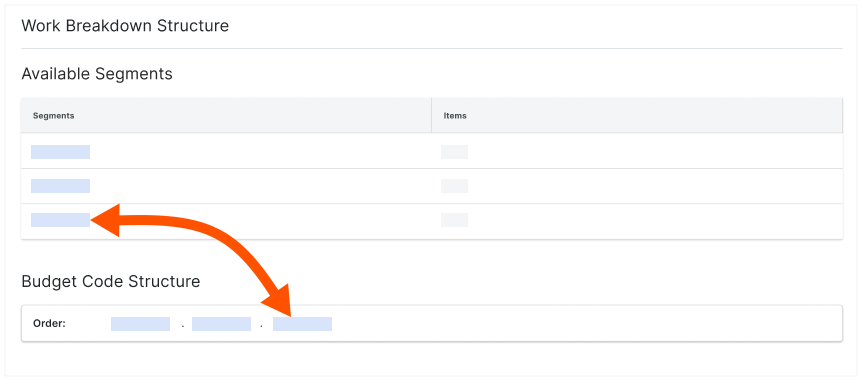
    wbs-project-added-to-budget-code-structure.png
  5. 继续按所需顺序排列细分。
 Tip
Did you know you can customize the budget code descriptions for your project? Customization is useful when your team wants to create two or more descriptions for a single budget code. Customization can also improve the readability of your codes on financial line items for your end users. To learn more, see Why and how do I create a custom budget code description for Procore's Project Financials tools?

排列项目预算编号结构

目标

安排默认和自定义细分顺序以自定义项目的工作分解结构 (WBS)

背景

你公司的 Procore 管理员可以启用一项设置,允许具有所需用户权限的用户按你想要的任意顺序排列项目预算编号结构中的细分。因为编辑项目的预算编号结构会永久地将其与公司的预算编号结构断开,所以你只应该在项目需要唯一的预算编号结构时使用此设置。

需要考虑的事项

  • 所需用户权限:
    • 项目级别管理员工具的“管理员”级别权限。
      或者
    • 项目级别管理工具上的“只读”或“标准”级别权限,并在你的权限模板上启用了“管理 WBS 代码”细分权限
  • 限制:
    • For customers using the Company level ERP Integrations tool
      The default segments in WBS are compatible with Procore's ERP Integrations tool. However, some integrations do NOT yet support custom segments. To learn more, see Things to Know about your ERP Integration.
    • For customers who have independently developed or purchased a third-party solution to integrate with Procore
      To take advantage of the custom segment capabilities associated with WBS, any existing API integrations that you have independently developed or purchased to interact with Procore must be updated to support Procore's new WBS API.

步骤

  1. 导航到项目级别管理员工具。
  2. 在右侧窗格中,点击工作分解结构链接。
  3. 在“预算编号结构”部分中,点击编辑按钮。
  4. 在“编辑预算编号结构”窗口中,阅读消息。
     重要提示
    如果你选择编辑项目的预算编号结构,请注意编辑操作会永久断开项目与公司预算编号结构的联系。你对项目所做的任何更改将仅适用于该项目。此外,对公司预算编号结构所做的所有更改都不会影响未来项目的预算编号结构。
  5. 如果要继续,请点击编辑
  6. 在"细分顺序"表中,点击并按住双点阵,然后使用拖放操作将每个细分放置在所需位置。"顺序"区域反映了你为项目的预算编号结构定义的细分顺序。
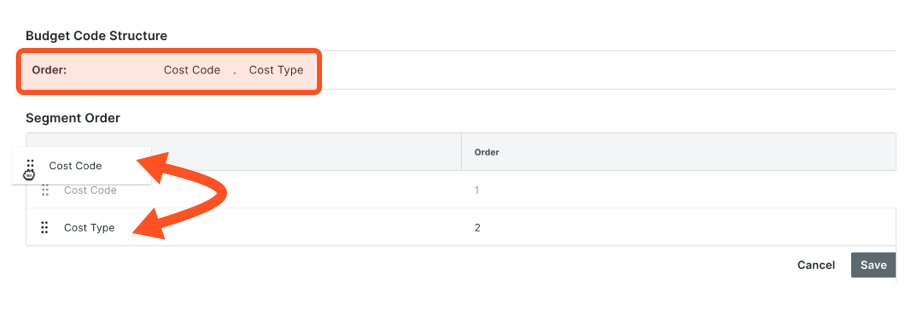
    wbs-configure-segment-order.png
  7. 点击保存
 Tip
Did you know you can customize the budget code descriptions for your project? Customization is useful when your team wants to create two or more descriptions for a single budget code. Customization can also improve the readability of your codes on financial line items for your end users. To learn more, see Why and how do I create a custom budget code description for Procore's Project Financials tools?

将公司细分复制到项目

从项目预算编号结构中移除细分

目标

从项目的预算编号结构中移除公司工作分解结构 (WBS) 中的自定义细分

背景

只要你的项目中没有使用该段的预算编号。你就可以从项目级别预算编号结构中删除自定义细分。

需要考虑的事项

  • 所需用户权限:
    • 项目级别管理员工具的“管理员”级别权限。
  • 其他信息:
  • 限制:
    • For customers using the Company level ERP Integrations tool
      The default segments in WBS are compatible with Procore's ERP Integrations tool. However, some integrations do NOT yet support custom segments. To learn more, see Things to Know about your ERP Integration.
    • For customers who have independently developed or purchased a third-party solution to integrate with Procore
      To take advantage of the custom segment capabilities associated with WBS, any existing API integrations that you have independently developed or purchased to interact with Procore must be updated to support Procore's new WBS API.

步骤

  1. 导航到项目级别的管理员工具。
  2. 在“项目设置”下,点击工作分解结构链接。
  3. 在"细分"表中,右键点击垂直省略号并选择从预算编号结构中移除菜单选项。

    wbs-remove-from-budget-code-structure.png

    Procore 会从项目的"预算编号结构"部分中删除选定的预算编号。