

使用 DocuSign® 填写合约变更通知单
背景
为合约创建合约变更通知单后,拥有 DocuSign® 账户的 Procore 用户可以准备一个 DocuSign® 信封并将 Procore 文档发送给适当的收件人以请求签名。
需要考虑的事项
- 所需用户权限:
- 项目合约工具的“管理员”级别权限。
和 - 如果将变更事件工具添加到项目,则将具有项目变更事件工具的“标准”或“管理员”级别权限。
- 项目合约工具的“管理员”级别权限。
- 其他信息:
- 从 Procore 登录你的 DocuSign® 账户后,你无需再次登录,直到登录令牌过期为止。过期后,Procore 中会显示“需要重新验证”横幅。要了解更多信息,请参阅Procore 中不同的 DocuSign® 横幅有什么含义?
先决条件
- 创建合约变更通知单。你将需要了解在项目的合约工具上配置的变更通知单层设置。请参阅项目财务管理中有哪些不同的变更通知单层设置?如果项目配置有:
- 1 层设置。请参阅创建合约变更通知单。
- 2 层或 3 层设置。请参阅创建变更事件和从变更事件创建合约变更通知单。
步骤
在 Procore 中打开合约变更通知单
以下步骤会向你展示如何在 Procore 中打开合约变更通知单。
- 导航到项目的合约工具。
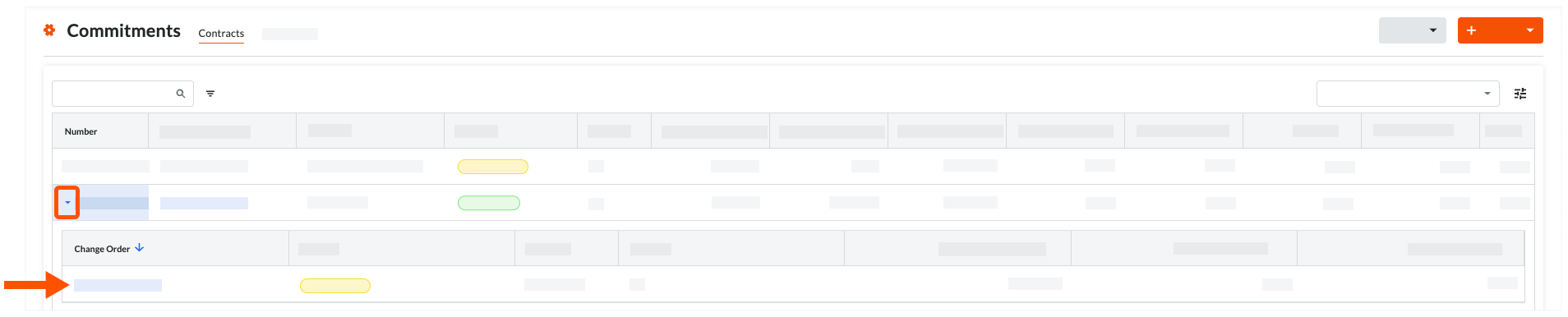
- 在合同标签页中,找到要处理的合约,然后点击箭头以展开合约的变更通知单。
- 点击变更通知单链接将其打开。
- 在变更单通知中,点击编辑。
- 选中使用DocuSign登录复选框。

- 滚动到页面底部,然后点击使用DocuSign完成。
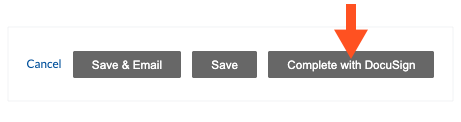
Procore 启动DocuSign ® Web 应用程序。如果你未登录DocuSign ®账户,则必须按照登录DocuSign ®中的步骤操作。如果你已经登录,请继续准备DocuSign ®信封。
登录 DocuSign®
准备 DocuSign®信封
登录到 DocuSign® 后,系统会显示“上传文档并添加信封收件人”页面。完成以下步骤:
将文档添加到信封
以下 Procore 信息会自动填充 DocuSign® 信封:
- 变更通知单的 PDF 副本会自动添加到“将文档添加到信封”分项。
- 合同上每个"角色"所需的签名框。例如,其合同受变更通知单影响的总承包商或分包商。这包括每个用户的"姓名"和"电子邮件地址"。有关详细信息,请参阅下面的将收件人添加到信封。
- 可选:如果要将其他文档添加到信封,请选择"将文档添加到信封"分项下的可用选项之一:
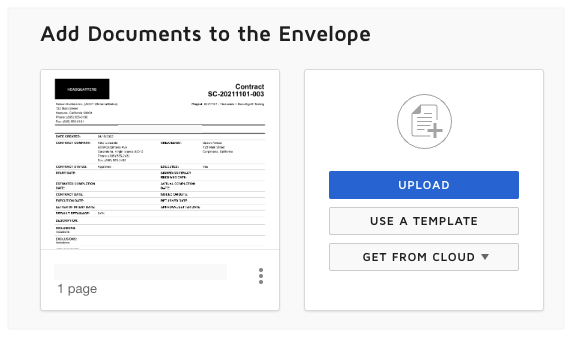
- 上传
- 使用模板
- 从云端获取
将收件人添加到信封
将收件人添加到信封的步骤:
- 在“将收件人添加到信封”下,系统会保留默认的收件人块、他们的姓名和电子邮件地址。Procore+DocuSign® 集成会自动将此数据添加到信封中。如果数据是在 Procore 中指定的,则收件人块的“姓名”和“电子邮件地址”字段中的值与 Procore 中的以下字段相对应:
- 分包商。此字段会自动填充指定为所选"合同公司"的"合同签署人"个人的名字、姓氏和电子邮件地址。
要正确提取此信息,必须满足以下条件:-
必须将公司添加到项目目录中。
-
必须在该公司目录条目的"合同签署人"下拉菜单中选择特定用户。
-
- 总承包商。 这是在项目目录的"主要联系人"字段中为与变更通知单关联的合约的"承包商"字段中指定的公司指定的个人。
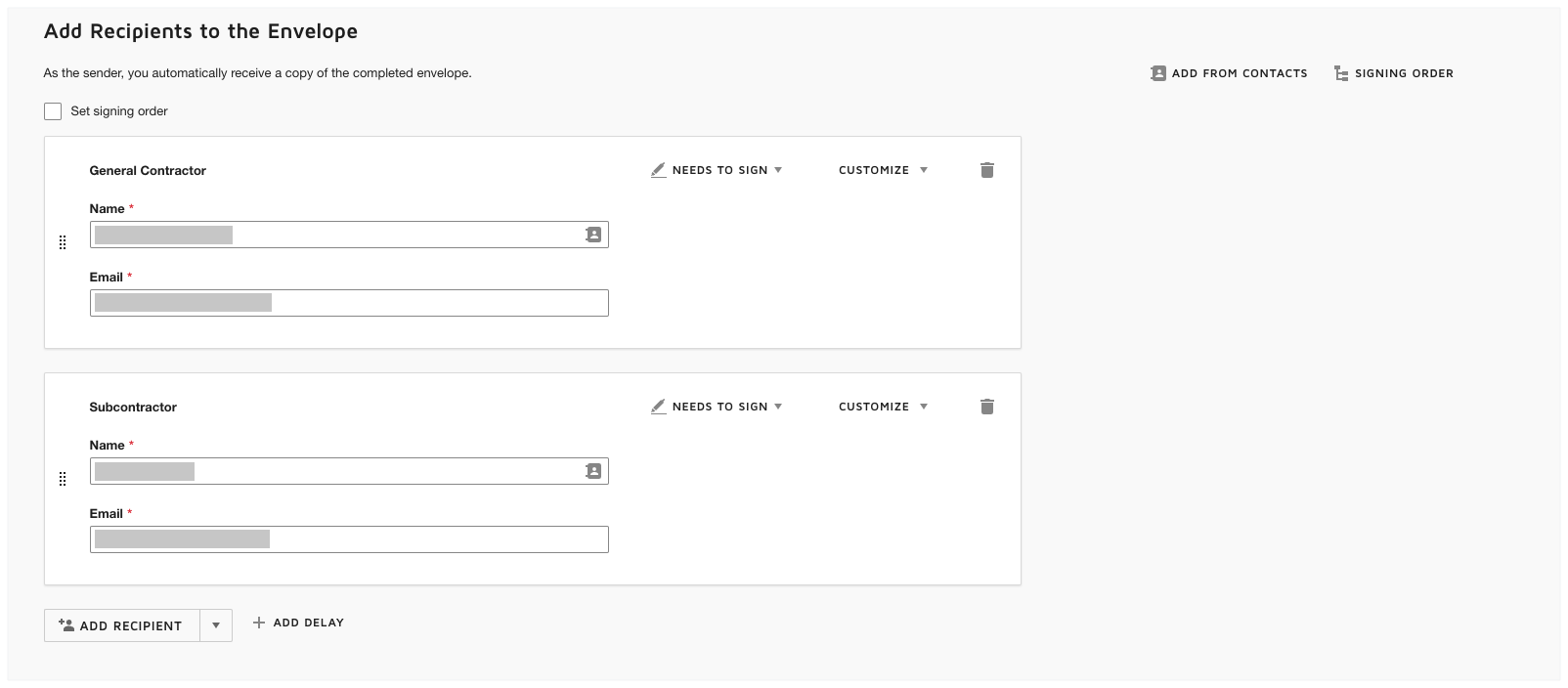
- 分包商。此字段会自动填充指定为所选"合同公司"的"合同签署人"个人的名字、姓氏和电子邮件地址。
将消息添加到所有收件人
预览签名字段并发送信封
下一步是预览 DocuSign® 文档上的签名字段。签名字段对应于 Procore 中的特定角色。例如,总承包商和分包商,他们是与此变更通知单相关联的合同的责任方。Procore + DocuSign® 集成会自动将这些字段添加到 DocuSign® 信封中。
- 滚动到DocuSign ®文档的底部,以查看签名字段。示例如下图所示。
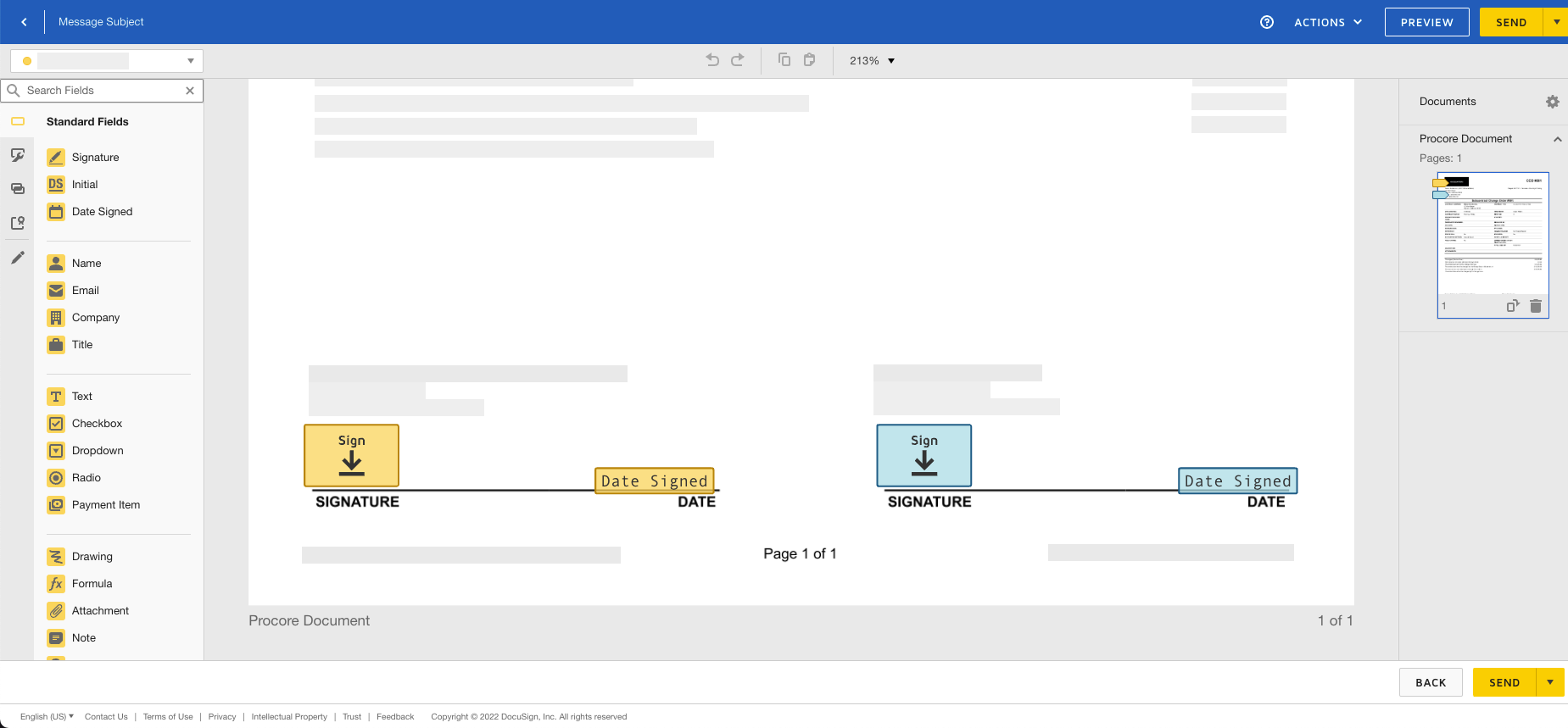
- 在 DocuSign® 文档中,系统会将签名字段保留在默认位置。这可确保 Procore + DocuSign® 收集流程按设计进行。
- 可选:根据需要向表单添加任意“标准字段”。
- 当你准备好收集指定的签名时,点击发送。
DocuSign® 会将信封发送给指定的收件人。然后,收件人可以继续下一步。在对文档应用所需的签名后,Procore 的默认行为是将 Procore 中的项目状态更改为“已获批”。