将项添加到传输记录
需要考虑的事项
- 所需用户权限:
- 要编辑现有传输记录,需要项目传输记录工具的“管理员”级别权限。
- 要在创建传输记录时添加项,需要项目传输记录工具的“标准”或更高级别权限。
- 其他信息:
- 如果要将 PDF 或其他文档附件添加到传输记录,你可以从项下的“格式”下拉列表中选择以下选项之一:文档、计划、印刷品、示例或施工图。
背景
传输记录工具可用于记录已通过传真和运输发送给其他人的项目信息。当你创建并发送传输记录时,将捕获所有传输记录信息并将其与你的 Procore 项目存储在一起,包括发件人姓名、收件人姓名和相关日期。例如,也许用户的电子邮件系统已关闭,发送正式答复意见的唯一方式为通过传真或电话。在这种情况下,可以使用传输记录来在 Procore 内部正确跟踪这些通信,以用于历史记录和审计目的。
步骤
- In the New Transmittal page, scroll down to the Items area.
- Select an item from the Format drop-down list.
Notes:
- You can add multiple items to a transmittal.
- When adding items to a transmittal, the system lets you attach multiple files at once for these formats: Documents, Plans, Prints, Samples, and Shop Drawings. See How do I attach multiple files at once to a transmittal?
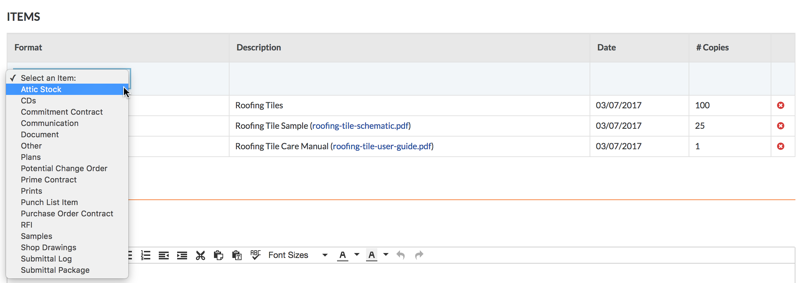
Depending on the Procore tools that are enabled in your environment, you may have these options:
-
Attic Stock: Select this option to create a transmittal for any attic stock Then enter a description, select a date from the calendar, and enter the number of copies.
-
CDs: Select this option to create a transmittal for a compact disc. Then enter a description, select a date from the calendar, and enter the number of copies.
-
Commitment Contract: Select this option to create a transmittal for subcontract (see Create a Subcontract). Next, select a subcontract from the Description list, the date of the subcontract is captured automatically, and then enter a number of copies.
-
Communication: Select this option to create a transmittal for an email message in the project's Emails tool.
-
Document: When you select this option, the system prompts you to select a document from the project's Documents tool.
-
Other: To create a different type of submittal, select this option. Then enter a description, select a date from the calendar, and enter a number of copies.
-
Plans: Select this option to create a transmittal for any construction plans. Then enter a description, attach any files to the item, select a date from the calendar, and enter a number of copies.
-
Potential Change Order: When you select this option, the system prompts you to select a potential change order from the project's Prime Contracts tool.
-
Prime Contract: When you select this option, the system prompts you to select a contract line item from the project's Prime Contracts tool.
-
Prints: Select this option to create a transmittal for prints. Next, enter a description of the print(s), attach a file of the print, select a date from the calendar, and enter a number of copies.
-
Punch List Item: When you select this option, the system prompts you to select a punch list item from the project's Punch List tool.
-
Purchase Order Contract: Select this option to create a transmittal for a purchase order (see Create a Purchase Order). Then select a purchase order from the Description list, the system sets the date automatically, and enter a number of copies.
-
RFI: When you select this option, the system prompts you to select an RFI from the project's RFIs tool.
-
Samples: Select this option to create a transmittal for a sample. Then type a description of the sample, attach a file to the item, select a date from the calendar, and enter a number of copies.
-
Shop Drawings: Select this option to create a transmittal for shop drawing. Then type a description of the shop drawing, attach a file to the item, select a date from the calendar, and enter a number of copies.
-
Submittal Log: Select this option to create a transmittal for a submittal. Then select a submittal from the Description list and specify the number of copies.
-
Submittal Package: When you select this option, the system prompts you to select a submittal package from the project's Submittals tool.
- Click Add.
Note: If you attached multiple files to the transmittal, each file is added as a separate line item.
- Repeat the steps above to add additional line items.
The illustration below shows you an example of a completed Items area.
Note: The system does NOT permit you to edit existing items. If you need to correct an item, click the RED 'x' to delete it. Then add the item again.

- Continue with Add Comments to the Transmittal.
 .
.