创建传输记录
背景
使用项目的传输记录工具可以创建已通过传真和运输发送给其他人的项目信息记录。当你创建传输记录并通过电子邮件将其副本发送给收件人时,系统会捕获所有信息并与将其与你的 Procore 项目一起存储,包括发件人、收件人的姓名和任何相关日期。例如,也许用户的电子邮件系统已关闭,发送正式答复意见的唯一方式为通过传真或电话。在这种情况下,你可能希望创建一个传输记录以跟踪通信,因此历史记录在 Procore 中可用于审计目的。
需要考虑的事项
- 所需用户权限:
- 要创建传输记录,需要项目传输记录工具的“标准”或“管理员”级别权限。
- 要添加到传输记录中的“收件人”或“抄送”字段,必须将用户添加到项目目录。请参阅将用户帐户添加到项目目录。
步骤
创建传输记录
- 导航到项目的传输记录工具。
- 点击创建。

- 继续执行以下步骤:
将一般信息添加到传输记录
- 滚动到一般信息。
- 按如下方式完成数据输入:
-
Number: Procore automatically assigns numbers to new transmittals in sequential order. You may change this number as desired.
-
Subject: A descriptive subject for the transmittal.
-
To: Select people or distribution groups from the project's Directory. This action assigns the transmittal to the named individuals. If you choose to click the Create and Email button (or 'Save and Email' if you are an 'Admin' user editing an existing transmittal), the system will automatically email a notification about the transmittal to the recipients.
-
CC: Select people or distribution groups from the project's Directory. This action carbon copies the transmittal to the named individuals. If you choose to click the Create and Email button (or 'Save and Email' if you are an 'Admin' user editing an existing transmittal), the system will automatically email a notification about the transmittal to the recipients.
-
Sent Via: Select Attached to attach an item from Procore to the transmittal or Under Separate Cover. If you select Under Separate Cover, you can also select one of these options: Email, US Mail, Hand Delivery, FedEx, UPS, DHL, Express Mail, Fax, and Other.
-
Private: Mark this checkbox to hide the transmittal from everyone except 'Admin' level users, designated users in the 'To' and 'Cc' fields, and members of the default distribution group (see Configure Advanced Settings: Transmittals).
-
Submitted For: Mark the checkboxes that correspond to the reason the transmittal is being submitted. You have these choices: Approval, Your Use, As Requested, Review and Comment, or Further Processing.
-
Action as Noted: Mark the checkboxes that correspond to the desired action. You have these choices: Out for Signature, Approved as Submitted, Approved as Noted, Submit, Resubmitted, Returned, Returned for Corrections, Resubmit, Due By, Received, Received as Noted, and Sent Date. (Note: It is recommended that you work with your project's management to define the proper use for each of these default actions in your environment).
- 继续执行将项添加到传输记录。
将项添加到传输记录
- 在“新传输记录”页面中,向下滚动到项区域。
- 从格式下拉列表中选择一个项。
注意:
- 可以将多个项添加到传输记录中。
- 将项添加到传输记录时,系统允许你一次添加以下格式的多个文件:文档、计划、印刷品、示例和施工图。请参阅如何一次将多个文件添加到传输记录中?
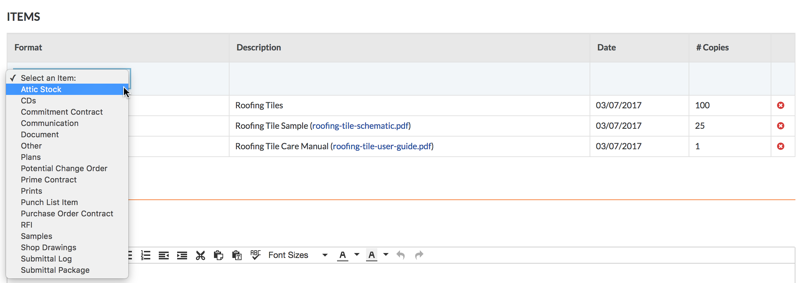
根据你的环境中启用的 Procore 工具,你可能提供以下选项:
-
Attic Stock: Select this option to create a transmittal for any attic stock Then enter a description, select a date from the calendar, and enter the number of copies.
-
CDs: Select this option to create a transmittal for a compact disc. Then enter a description, select a date from the calendar, and enter the number of copies.
-
Commitment Contract: Select this option to create a transmittal for subcontract (see Create a Subcontract). Next, select a subcontract from the Description list, the date of the subcontract is captured automatically, and then enter a number of copies.
-
Communication: Select this option to create a transmittal for an email message in the project's Emails tool.
-
Document: When you select this option, the system prompts you to select a document from the project's Documents tool.
-
Other: To create a different type of submittal, select this option. Then enter a description, select a date from the calendar, and enter a number of copies.
-
Plans: Select this option to create a transmittal for any construction plans. Then enter a description, attach any files to the item, select a date from the calendar, and enter a number of copies.
-
Potential Change Order: When you select this option, the system prompts you to select a potential change order from the project's Prime Contracts tool.
-
Prime Contract: When you select this option, the system prompts you to select a contract line item from the project's Prime Contracts tool.
-
Prints: Select this option to create a transmittal for prints. Next, enter a description of the print(s), attach a file of the print, select a date from the calendar, and enter a number of copies.
-
Punch List Item: When you select this option, the system prompts you to select a punch list item from the project's Punch List tool.
-
Purchase Order Contract: Select this option to create a transmittal for a purchase order (see Create a Purchase Order). Then select a purchase order from the Description list, the system sets the date automatically, and enter a number of copies.
-
RFI: When you select this option, the system prompts you to select an RFI from the project's RFIs tool.
-
Samples: Select this option to create a transmittal for a sample. Then type a description of the sample, attach a file to the item, select a date from the calendar, and enter a number of copies.
-
Shop Drawings: Select this option to create a transmittal for shop drawing. Then type a description of the shop drawing, attach a file to the item, select a date from the calendar, and enter a number of copies.
-
Submittal Log: Select this option to create a transmittal for a submittal. Then select a submittal from the Description list and specify the number of copies.
-
Submittal Package: When you select this option, the system prompts you to select a submittal package from the project's Submittals tool.
- 点击添加。
注意:如果将多个文件添加到传输记录,则每个文件都将作为单独的明细项添加。
- 重复上述步骤以添加其他明细项。
下图显示了已完成"项"区域的示例。
注意:系统不允许编辑现有项。如果你需要更正某个项,请点击红色的"x"将其删除。然后再次添加项。

- 继续执行将备注添加到传输记录。
将备注添加到传输记录
- 在“新传输记录”页面中,向下滚动到备注区域。
- 在备注框中键入有关传输记录的任何其他信息。
- 继续执行创建或创建并发送传输记录。
创建或创建并发送传输记录
- 滚动到“新传输记录”页面的底部。
- 从以下选项中选择:
- 要创建传输记录,而不向“收件人”和“抄送”字段中列出的人员发送电子邮件,请点击创建。
或者
- 要创建传输记录并向“收件人”和“抄送”字段中列出的人员发送电子邮件通知,请点击创建并发送电子邮件。
注意:创建传输记录后,系统会显示“相关项”、“电子邮件”和“变更历史记录”标签页。“电子邮件”标签页使用户能够将传输记录转发给其他项目团队成员。请参阅通过电子邮件转发传输记录。
 .
.