批量编辑 RFI
目标
使用 RFI 工具中的批量操作菜单,对一批 RFI 执行批量编辑。
背景
想对多个 RFI 应用相同的编辑时,请使用批量操作 > 编辑选项。
步骤
- 导航到项目的 RFI 工具。
- 点击项标签页。
这会显示项目中所有 RFI 的列表。其中不包括送入回收站的 RFI。请参阅删除 RFI。
- 在项列表中找到要修改的 RFI。
- 要选择列表中的所有 RFI,请选中左列顶部的复选框。
或者
- 要选择列表中的一个或多个 RFI,请选中每个所需 RFI 左侧的复选框。
- 点击编辑
 图标。
图标。
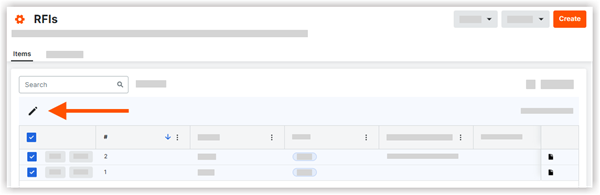
这将显示一个侧面板,你可以在其中进行必要的编辑。
- 从这些选项中进行选择以编辑所选的 RFI:
-
-
Responsible Contractor. This field is automatically prefilled with the company that is associated with the user selected in the 'Received From' field.
-
Received From. Select the person from whom the RFI question was received from the drop-down list.
-
-
Private. Select Yes or No from the drop-down list. Yes indicates the RFI(s) will be marked Private. No indicates the RFI(s) will NOT be marked Private.
-
Cost Impact. Select one of the following options from the drop-down list.
- Yes. Select this option if you know the amount by which the cost will be impacted. Then enter a number in the $ box to indicate the cost impact.
- Yes (Unknown). Select this option if you know the cost will be impacted, but the amount is not know.
- No. Select this option if there is no impact to the cost.
- TBD. Select this option if you have yet to determine if there is a cost impact.
- N/A. Select this option if the cost impact is not applicable to this RFI.
-
Schedule Impact. Select one of the following options from the drop-down list.
- Yes. Select this option if you know the number of days by which the schedule will be impacted. Then enter a number in the Days box to indicate the total number of calendar days.
- Yes (Unknown). Select this option if you know the schedule will be impacted, but the number of days is not known.
- No. Select this option if there is no impact to the schedule.
- TBD. Select this option if you have yet to determine if there is a schedule impact.
- N/A. Select this option if an impact to the schedule is not applicable to this RFI.
-
Due Date. Enter or select a date from the calendar for the RFI response to be due. This field is only visible and available to users with 'Admin' level permissions on the project's RFIs tool.
Note: The 'Due Date' field is automatically populated based on the default number of days specified on the RFIs tool's Configure Settings page. See Configure Advanced Settings: RFIs. The due date also respects which days are set as 'working days' for the project. See Set Project Working Days.
- 点击应用。
这会将指定的编辑应用于所有选定的 RFI。会出现绿色横幅,以确认已成功编辑的 RFI 总数。如果编辑未成功保存,将出现一个红色横幅。
 .
.