跳转到主内容
Procore

审核考勤表 (iOS)

目标

To review the timecard entries on a timesheet.

背景

After you create a timesheet, you have the option to collect signatures from your field employees. See Sign a Timesheet (Android) and Sign a Timesheet (iOS). Next, you can begin reviewing your timesheets for accuracy and completeness. 

Example

Because every construction company is different, the team members you choose to carry out your timekeeping process may differ from the roles and considerations in this example:

  • Foremen, Superintendents, and other Supervisors. These are the team members who will create time card entries and timesheets on a project. At a minimum, you should provide these team members with 'Read Only' or 'Standard' level permissions on the Project level Timesheets tool and the 'Review & Edit Timesheets' granular permission on a project permission template. This allows these users to create new timesheets in the 'Pending' status and change the status of a timesheet to 'Reviewed' in the Project level Timesheets tool. They can also change the status from 'Pending' to 'Reviewed' on project timesheets that they have permission to view using the Company level Timesheets tool. 
  • Project Managers and other Administrators or Executives. These are the team members who will approve 'Reviewed' timesheets before handing them off to your accounting/payroll team for processing. At a minimum, you should provide these team members with 'Admin' on the Project level Timesheets tool. However, if they are responsible for monitoring timekeeping on multiple projects, you may wish to also grant them 'Admin' level permissions on the Company level Timesheets tool. 
  • Accounting, Payroll, and other Administrators or Executives. These are the team members who will mark timesheets 'Completed.' This capability is only available in the Company level Timesheets tool, so you should assign these users 'Admin' level permissions on both the Project level Timesheets tool. This allows users to access the Company level Timesheets tool. It also allows users to see project data in the Company level tool.  

需要考虑的事项

 Tip
Need to edit a timecard entry? See Edit a Timesheet.

先决条件

完成以下任务中的至少一 (1) 项:

步骤

审核考勤卡条目

  1. 导航到 iOS 移动设备上的项目考勤表工具。
  2. 点击项目
  3. 点击要审核其考勤表的工作小组成员或员工。
  4. 点击考勤卡条目并审核。
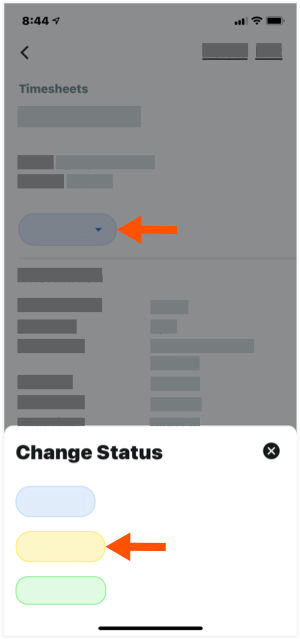
  5. 将考勤卡条目的状态更改为“已审核”,如下所示:
    • 在考勤卡条目上,点击“待处理”状态图标。
    • 在"变更状态"标签页上,点击"已审核"状态图标以将其选中。

      pending-to-reviewed.png
       
  6. 对考勤表上的每个考勤卡条目重复上述步骤,直到已批准考勤表上的所有条目。
  7. 继续执行下面的审核考勤表

审核考勤表

  1. 导航到 iOS 移动设备上的项目考勤表工具。
  2. 点击要审核的考勤表。
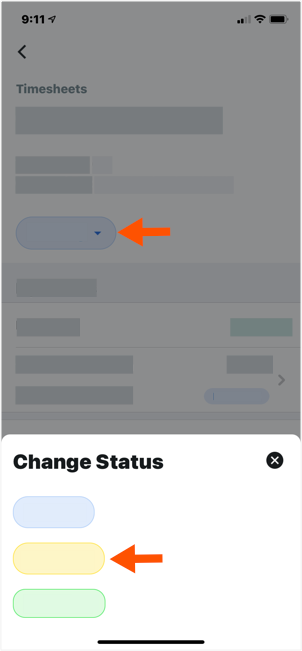
  3. 将考勤表的状态更改为“已审核”,如下所示:
    • 在考勤表上,点击“待处理”状态图标。
    • 在"变更状态"标签页上,点击"已审核"状态图标以将其选中。

      timesheet-pending-to-reviewed.png
       
  4. 对要审核的每个考勤表重复上述步骤。

后续步骤


If you would like to learn more about Procore's timesheet management software and how it can help your business, please visit our construction timesheet software product page icon-external-link.png.