跳转到主内容
Procore

批准考勤表 (iOS)

目标

To approve a timesheet in the project's Timesheets tool.

背景

Depending on your project's business process, your employees and workers might be responsible for submitting their own timecards and timecard entries or your foreman/superintendents may choose to create timecard entries on behalf of their crew. The next step is to verify the timesheet's data for accuracy and completeness. Typically, this first-tier approval is completed by a foreman or superintendent who changes the timesheet's status to 'Reviewed'.

The next tier in the approval process is for a project manager (or another project executive) to approve the entries to ensure readiness for payroll—Do the hours submitted look accurate? Was 'Overtime' applied properly? Are the hours logged to the appropriate cost code? The steps below show you how to approve a timesheet.

需要考虑的事项

先决条件

步骤

批准考勤卡条目

  1. 导航到项目的考勤表工具。
  2. 导航到要审核的考勤卡条目。
  3. 点击考勤卡条目并审核。
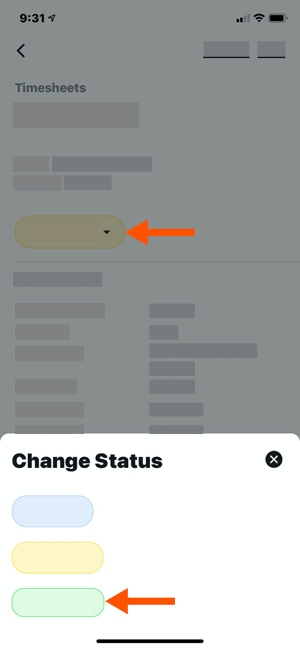
  4. 将考勤卡条目的状态更改为“已获批”,如下所示:
    • 在考勤卡条目上,点击“已审核”状态图标。
    • 在"变更状态"标签页上,点击"已获批"状态图标以将其选中。

      timecard-entry-reviewed-to-approved.png
       
  5. 对考勤表上的每个考勤卡条目重复上述步骤,直到已批准考勤表上的所有条目。
  6. 继续执行下面的批准考勤表

批准考勤表

  1. 导航到项目的考勤表工具。
  2. 导航到要查看的考勤表。
  3. 如果你在考勤表上的所有考勤卡条目都准确且完整:
    • 在考勤表上,点击“已审核”状态图标。
    • 在"变更状态"标签页上,点击"已获批"状态图标以将其选中。

      timesheet-reviewed-to-approved.png
  4. 对每个考勤表重复上述步骤。
 提示
如果稍后需要编辑考勤表,必须将其状态更改为“已审核”或“待处理”。如果是在移动设备上收集的员工签名,则需要再次收集这些签名。


If you would like to learn more about Procore's timesheet management software and how it can help your business, please visit our construction timesheet software product page icon-external-link.png.